A gallery-dl download archive gives recurring jobs a persistent record to check. Use the same archive path on later runs so known items can be skipped while new eligible items are processed. This guide covers a safe command, archive scope, maintenance, and troubleshooting.
Repeat-run workflowStable local fileArchive limits
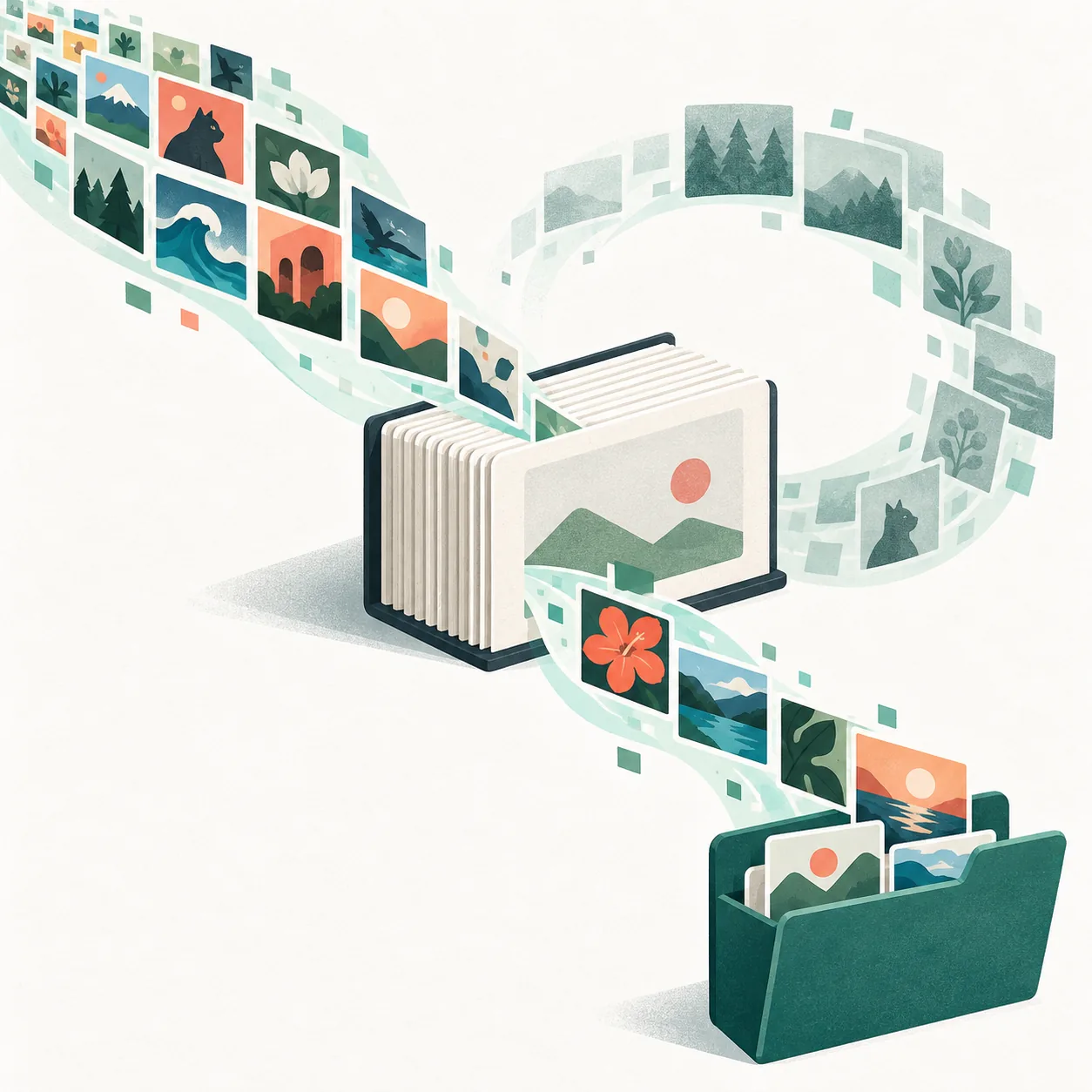
The archive is a record used by later runs; it is separate from the downloaded media.Short answer: reuse one archive file
Pass --download-archive FILE with a path you can keep stable, then use that same path on future runs. Start with one supported URL and a small range, confirm the archive is being read and updated, and keep a separate backup. The archive tracks download decisions; it is not a copy of your media or a file-integrity check.
UNDERSTAND THE RECORD
What the gallery-dl download archive does
The --download-archive option connects gallery-dl to a local file. The command-line reference says it records processed items and skips items already in the archive. Reusing that file lets a later profile, gallery, or scheduled run check its history instead of treating every item as new.
The archive is downloader bookkeeping, not media, a destination list, or a checksum. It cannot restore deleted files or confirm that media still opens. A filename template only names new files; it does not replace an archive or compare image bytes across unrelated URLs.
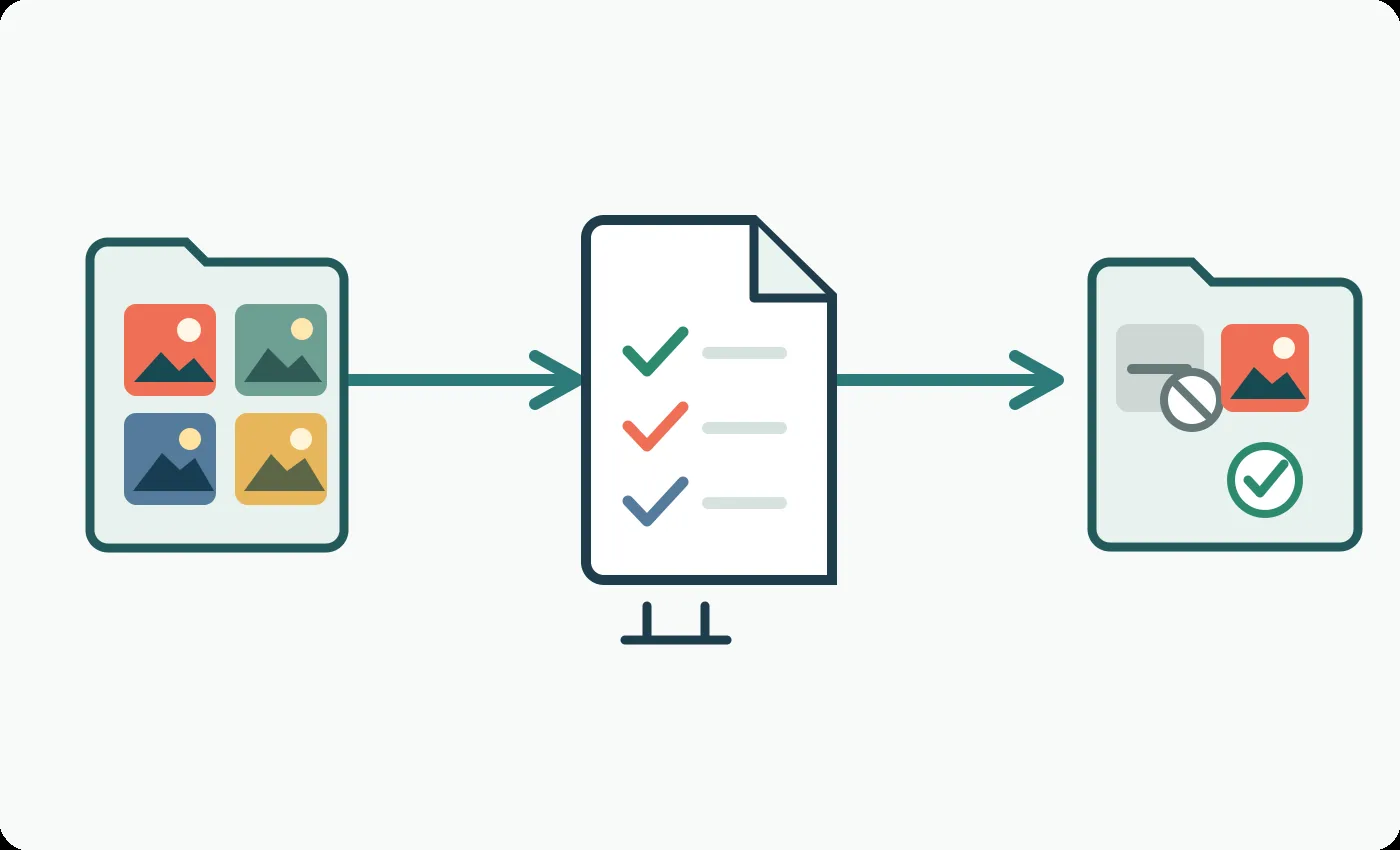
Future runs need access to the same archive file.
Back up the archive separately from downloaded media.
A recorded item does not prove its local file is present or unchanged.
CHOOSE THE FILE ONCE
Choose a stable path for the archive file
Choose a location that stays available to the gallery-dl account and machine. An absolute path is easier to verify in a scheduler because a relative path depends on its working directory. Keep the archive outside folders you routinely rename, clean, or replace.
Name the file for its job, record the path beside the command, and avoid renaming or editing it based on guesses about its internal format. When moving a job, copy the archive deliberately and point the new command to that copy.
When a repeat job changes machines, shells, or scheduled-task settings, recheck the exact archive path before assuming its history followed the job.
TEST THE LOOP
Test the first run and the later run
Use a supported URL you are authorized to access. For an unfamiliar URL, first simulate it without an archive. Then make a small real run with a limited range and a dedicated archive path so you can inspect the destination and repeat behavior.
Repeat the same URL, range, and archive path. Recorded items should be skipped. Once the test makes sense, remove the range only if you intend to process more items. For a scheduled job, save the tested option and path with its command and note the environment that ran it.
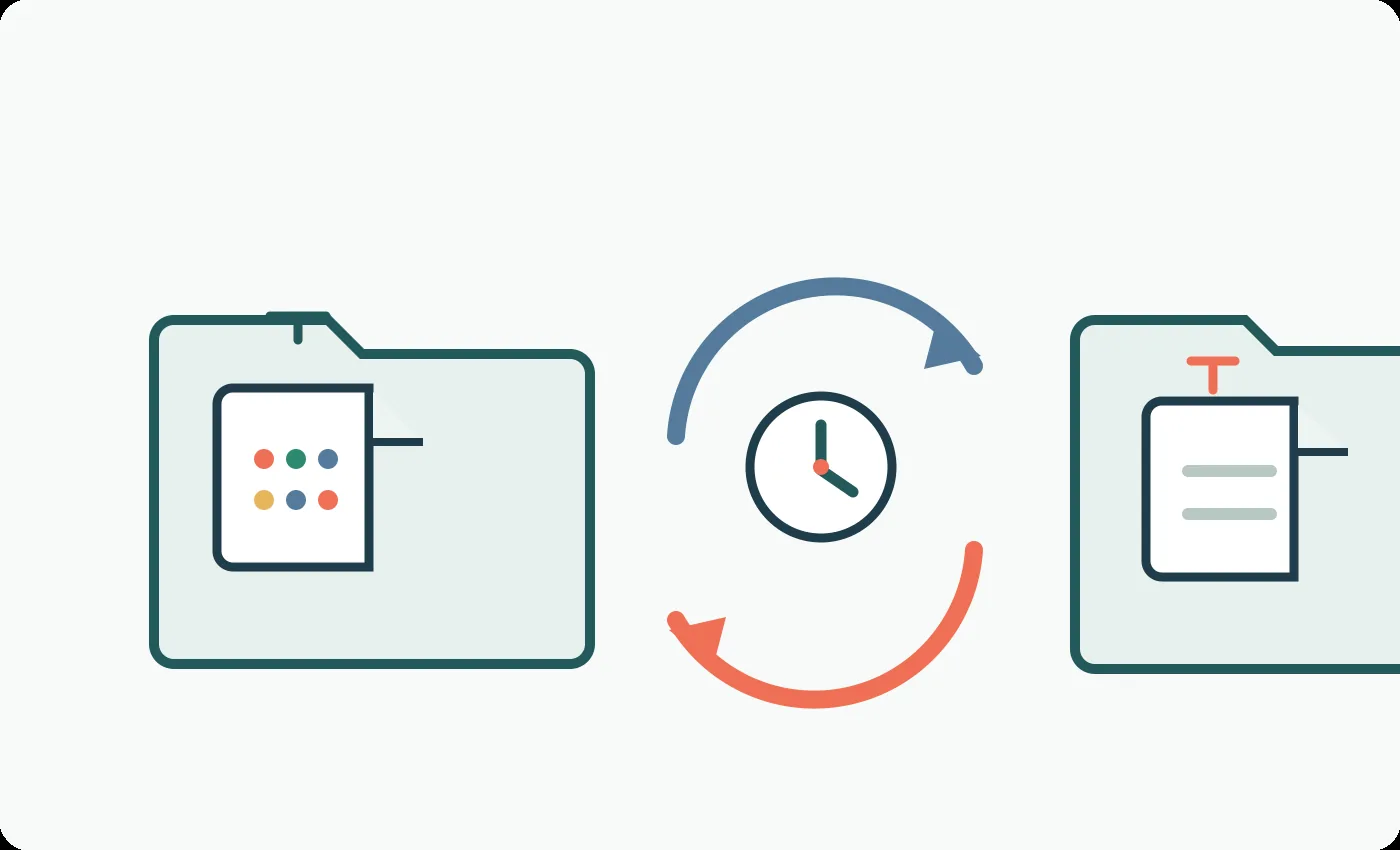
A repeat test is meaningful only when it uses the same URL, range, and archive path.
Keep the same archive file between the two test runs.
Do not increase the range until you understand the first result.
After testing, remove the range only when you want to process more items.
One recurring profile or collection is easiest to reason about with one stable archive path. Separate files help when jobs have different owners, destinations, or schedules. Share a file only when you intend to manage those URL types as one workflow and have tested them together.
An archive does not decide what a run selects. A range, date filter, or extractor setting affects which items are considered; the archive supplies history to that process. If a job stops early or ordering changes, review both selection and archive behavior before adding a skip threshold.
Job pattern
Practical archive choice
What to verify
One profile checked repeatedly
Keep one stable archive path for that job
The scheduled command still resolves the same path
Separate creators or destinations
Use clearly named, separate archive files
Each command points to its intended file
One deliberately combined collection
Share only after a small test
The URL types and history behave as intended
SET EXPECTATIONS
Know what an archive cannot detect
A download archive is not a byte-for-byte duplicate scanner. Do not assume it merges identical media from different URLs or detects changed file contents. Use a separate local file-management process when you need content comparison.
A record can remain after you move or delete its media, so the archive cannot restore that file. Preserve a copy before resetting history. For new items in a changing collection, also verify that your range or date filter still selects the items you want.
Inspect a supported URL before changing filters
gallery-dl --config-ignore --simulate "URL"
Review command options
gallery-dl --help
PRESERVE THE HISTORY
Back up and move an archive deliberately
Back up the archive with a note about the job that uses it, separately from the media destination. Before moving a job, copy the file and point the new command to that copy. A small authorized test can confirm the new path before you schedule a full run.
If you reset a job, keep the old history until the replacement passes a small test. Do not expect separate archive copies on two machines to synchronize automatically, and do not edit a file whose format you have not verified.
Keep the active archive path stable and preserve a separate copy before a planned move or reset.
Keep the archive outside temporary download and cleanup folders.
Record the job, URL type, archive path, and tested command together.
Copy the file before changing machines or intentionally resetting history.
Test a restored or moved file with a small authorized run.
CHECK THE INPUTS
Troubleshoot items that download again
If items download again, inspect the command that actually ran. Check that --download-archive is present, the path matches, and the process can access it. A scheduler may use another account or working directory, so compare its environment with your tested command.
Then compare the URL, range, filters, and configuration. Test one authorized URL at a time and avoid another large run while the archive path is uncertain. If expected items are skipped, check selection settings first and preserve a copy before resetting anything.
Everything downloads again
Check the option, absolute path, operating-system account, and scheduler working directory. Verify that the second run uses the same file as the first.
Compare the full command
Check read and write access
Confirm no temporary file replaced the archive
Expected items are still skipped
Check the selected URL, range, and filters before changing the archive. Keep a backup, then use a separate test archive if you need to verify a clean run.
Inspect the current command options
Test one authorized URL
Avoid editing an unknown archive format
A REPEATABLE ROUTINE
A reliable gallery-dl archive routine
Use a supported URL, a reviewed command, a predictable destination, and one archive path that stays with the job. Test a small range, repeat the same command, then widen the run only after the archive behavior is clear. Back up its history separately from the media. When results change, compare the path, URL, range, filters, and configuration before resetting anything.
FAQ
gallery-dl Download Archive FAQ
How do I stop gallery-dl from downloading the same items again?
Use --download-archive with a stable local file path and pass that same path on future runs. Start with a small test and confirm the later run checks that file.
What should I use as the archive file path?
Choose a location that stays available to the gallery-dl account and job. An absolute path is easier to verify in a scheduler than a relative path, which can depend on the working directory.
Does the download archive contain my downloaded images?
No. It is a record used by repeat runs, separate from the media destination. It is not a backup or file-integrity check.
Can I use one archive for several URLs?
Only after you decide that the jobs should share history and test the exact URL types. Separate archive files are easier to diagnose when jobs have different owners, destinations, or schedules.
Why are items downloading again even with an archive?
Check that the option is present and the run uses the same readable archive file. Compare the URL, range, filters, account, and scheduler working directory.
How can I intentionally download an archived item again?
Preserve the current archive and use a separate test archive or a deliberate method confirmed by the current official documentation. Do not edit an archive file whose format you have not verified.