pip
Use the interpreter that owns the package. On Windows, py -m pip is useful when several Python installations exist.
- python -m pip install -U gallery-dl
- py -m pip install -U gallery-dl
- Re-run gallery-dl --version after the command finishes
Update gallery-dl through the same channel that installed it, then verify the executable your shell actually runs. This guide covers pip, package managers, standalone builds, official update options, PATH conflicts, and a small post-update test.
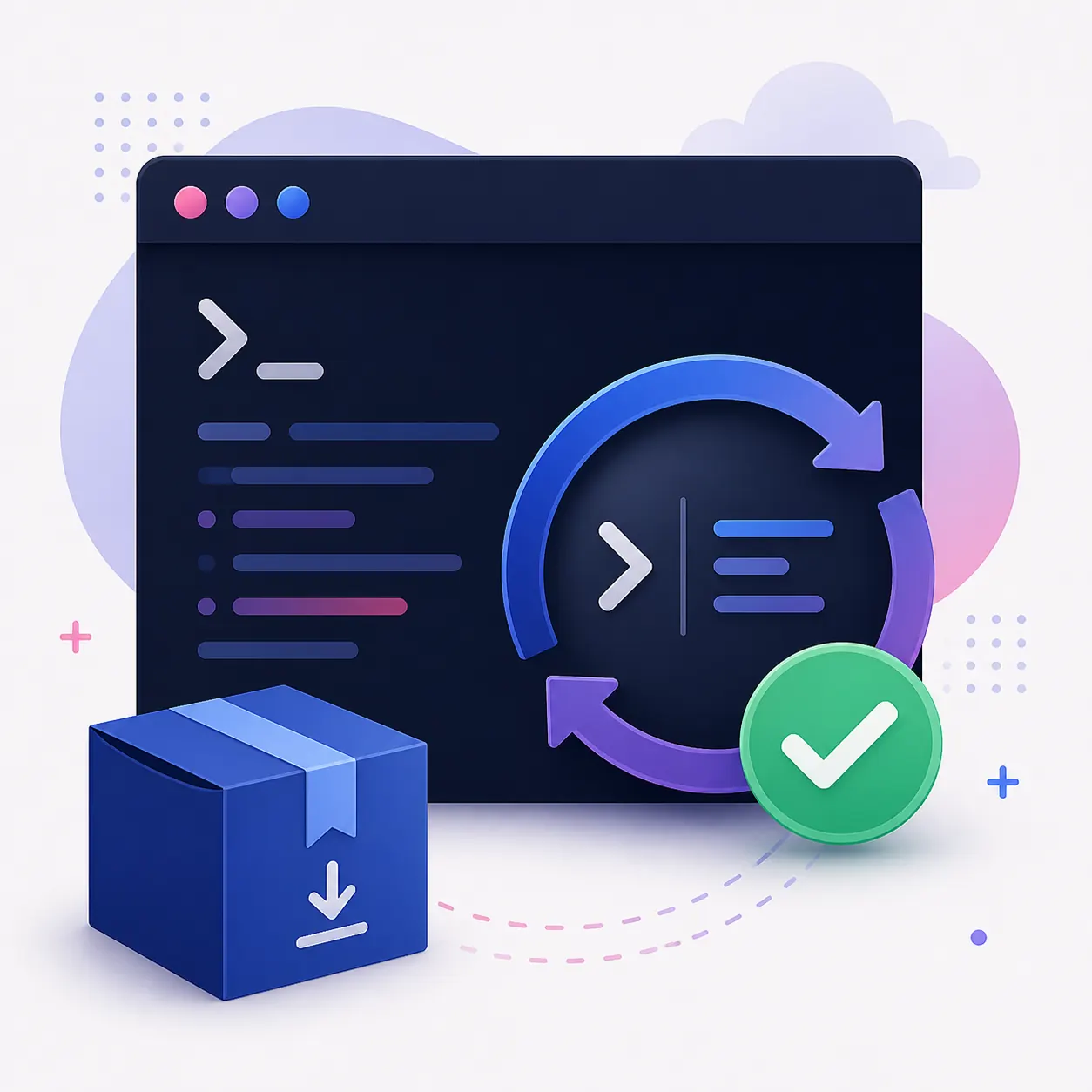
If pip installed gallery-dl, use python -m pip install -U gallery-dl. If Homebrew, Chocolatey, Scoop, Snap, or another package manager installed it, use that manager. For a standalone build, replace the executable from the official release. Finish with gallery-dl --version and where gallery-dl (or which gallery-dl) so you know which copy changed.
The most common update mistake is changing one installation while the shell keeps running another. Before upgrading, record the current version and the executable path. On Windows, use where gallery-dl; on macOS or Linux, use which gallery-dl. If you installed with pip, python -m pip show gallery-dl identifies the package attached to that Python interpreter.
Keep this baseline in a short note. It lets you distinguish a failed update from a PATH problem, a package-manager delay, or a second standalone executable. Do not remove configuration or cookies just because the version check is confusing; those are separate troubleshooting layers.
gallery-dl --versionwhere gallery-dlwhich gallery-dlpython -m pip show gallery-dlUse one package owner for the command whenever possible. Mixing pip, a system package, and a standalone executable makes it easy to update the wrong copy. If you are unsure, run the path checks above before installing anything else.
The official project publishes stable releases and standalone files separately from package-manager timing. A package manager may lag behind a release, while a standalone file can be current but live in a directory that is not first on PATH.
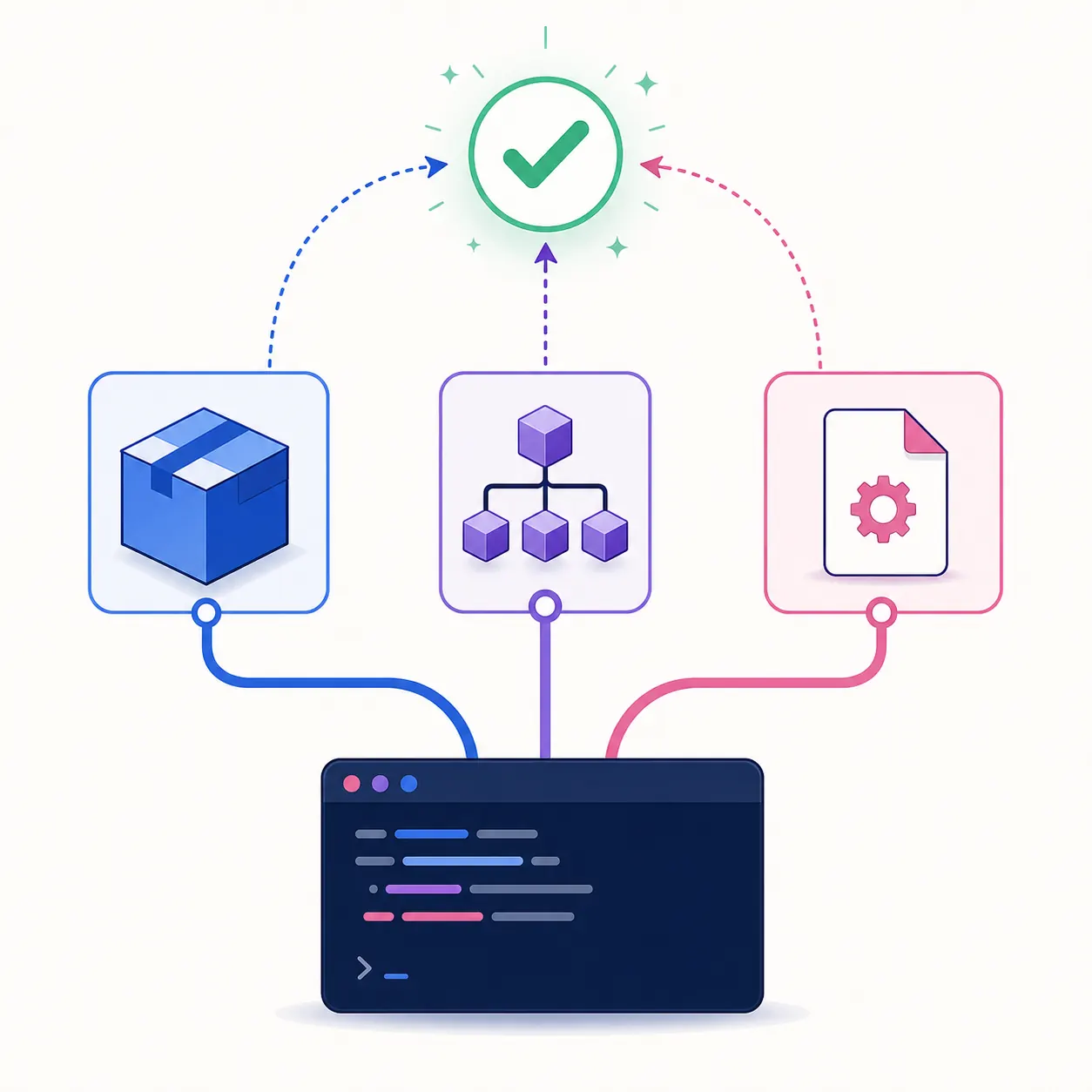
Use the interpreter that owns the package. On Windows, py -m pip is useful when several Python installations exist.
Run the upgrade through the same manager that installed gallery-dl, then check the resolved path. The exact package name can vary by platform and repository.
Download the matching Windows or Linux asset from the official release, replace the old executable deliberately, and preserve a backup until the new version passes a small test.
The official command-line options include an update action, an update check, and a release-channel selector. These options are useful when the executable can update itself, but they do not remove the need to confirm the installation path. If a package manager owns the file, let that manager remain the source of truth instead of mixing self-update and package upgrades.
A stable release is the right default for ordinary jobs. Use another channel only when you understand why you need it and can reproduce the change. Record the channel in your maintenance note so a later package-manager upgrade does not silently replace it.
gallery-dl -Ugallery-dl --update-checkgallery-dl --update-to stableThe proof is the combination of the resolved path, the version output, and a small authorized simulation. If the version did not change, inspect PATH and package ownership before retrying.
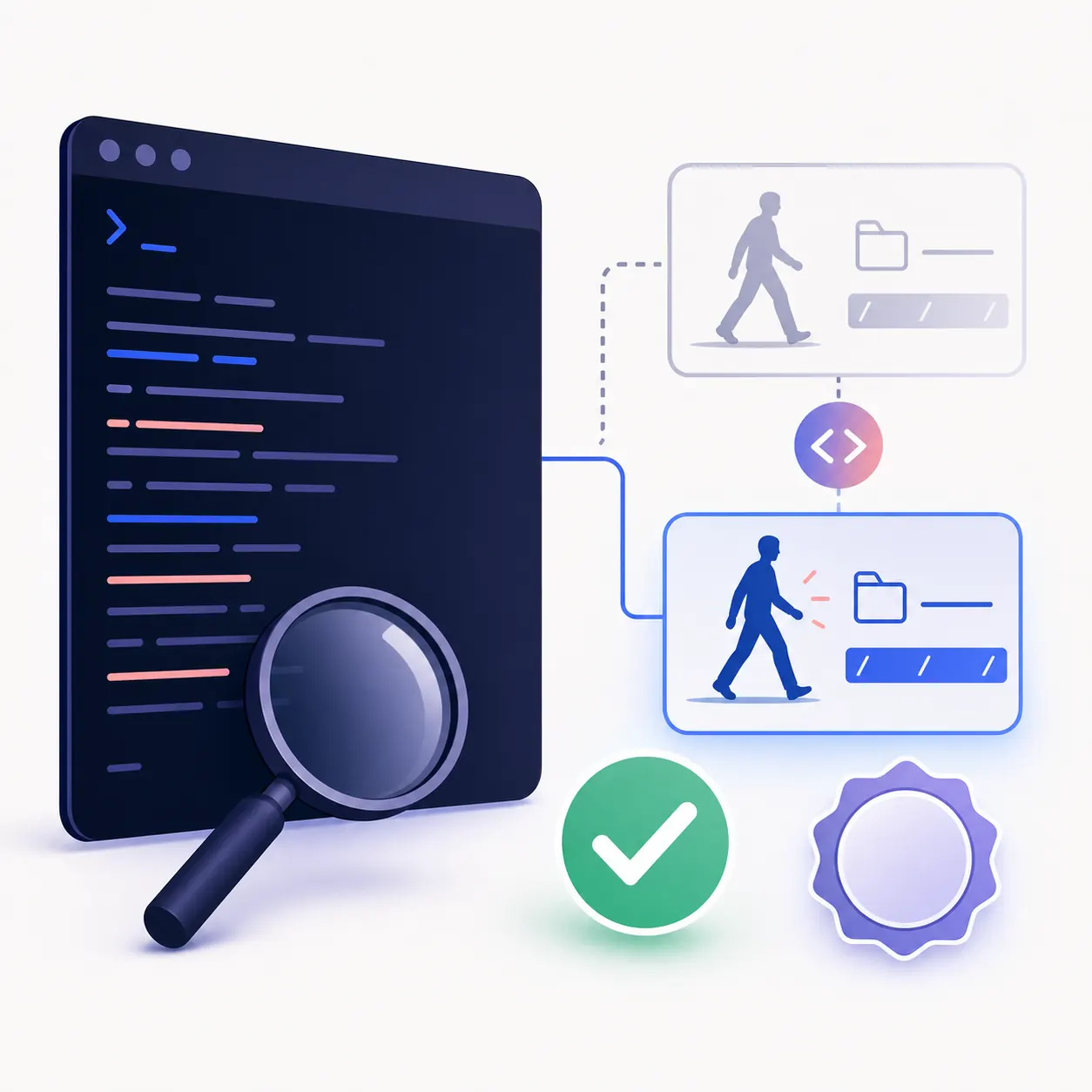
After updating, run the version command from a new shell when PATH changed. Compare the output with the executable path you recorded earlier. If a Python installation and a standalone file are both present, test each deliberately instead of assuming the first command is the one you upgraded.
Then run a small public URL with simulation enabled. This checks that the new extractor code starts, the command can read your intended configuration, and no large download begins while you are still validating the change.
gallery-dl --config-ignore --simulate "URL"gallery-dl --config-status| Check | Command | What it tells you |
|---|---|---|
| Version | gallery-dl --version | Which release the resolved command reports |
| Path | where / which gallery-dl | Which executable the shell will start |
| Package owner | python -m pip show gallery-dl | Which Python environment owns the pip package |
| Clean test | gallery-dl --config-ignore --simulate "URL" | Whether extraction starts without a large write |
| Config status | gallery-dl --config-status | Which configuration files are loaded |
If the version stays the same, first check whether the shell resolves a different executable than the one you updated. If pip reports success but the command is unchanged, compare python -m pip show gallery-dl with the command path and reopen the terminal. A package manager can also lag behind the upstream stable release; that is a timing difference, not necessarily a broken update.
If the update succeeds but a site now behaves differently, separate software version, URL recognition, cookies, configuration, rate limits, and storage. Run the clean simulation before changing several settings. Never share raw cookies, authorization headers, private URLs, or full local paths in a bug report.
Compare where or which output with the installer you used. Remove or rename only the duplicate you have identified, and keep a recoverable backup.
where gallery-dl
gallery-dl --versionReproduce with one authorized public URL, --config-ignore, --simulate, and a small range. Then restore configuration one layer at a time.
gallery-dl --config-ignore --simulate "URL"The official release sources checked on August 16, 2026 report gallery-dl 1.32.9, published August 1, 2026. Re-check the upstream release before treating that version as current at a later date.
Use the same channel that installed it. For pip, run python -m pip install -U gallery-dl; for a package manager, run its upgrade command; for a standalone build, replace the official executable. Verify the version and path afterward.
Run python -m pip install -U gallery-dl, or py -m pip install -U gallery-dl on Windows when you need to select the Python launcher. Then run gallery-dl --version and python -m pip show gallery-dl to compare the package and command.
The shell may be starting another copy earlier on PATH, the terminal may have an old command location, or the package manager may not have the newest release. Compare where or which output with the installer you updated.
Prefer the owner of the current executable. Use -U only when the installed executable supports that self-update flow; if pip, Homebrew, Chocolatey, Scoop, Snap, or another manager owns it, keep that manager as the source of truth.
The official GitHub and Codeberg release sources checked on August 16, 2026 reported gallery-dl 1.32.9, published August 1, 2026. Check the upstream release again before relying on that version later.
A normal package or executable update should not be treated as a request to delete configuration or cookies. Back up important config, check loaded paths with --config-status, and troubleshoot authentication separately if a site behaves differently.